
Your drive just answered in one word and one colour. CrystalDiskInfo SSD health reporting is still the fastest way to get that answer on Windows: free, tiny, brutal in its honesty. Then the verdict arrives and the internet runs out of useful things to say. Open a “Caution” result and every guide tells you to buy a new SSD, then closes the tab.
That’s not an answer – that’s a shrug with a shopping link. So here is the whole thing: what the percentage actually measures, which S.M.A.R.T. attributes decide the colour, and exactly what to do in the first seven days after your drive turns yellow.
You have already installed the tool. Good. Now let’s learn to read it.
What the health percentage in CrystalDiskInfo actually measures
Short version: it does not measure your data’s safety, and it is not a countdown timer.
CrystalDiskInfo reads S.M.A.R.T. from the drive’s own controller – current normalized value, worst value, threshold, raw value – and folds that into a number and a status. For an SSD, the percentage is usually derived from a wear or remaining-life attribute, and the drive maker picks that attribute, not the program. For a hard disk, the default check is a completely different one: whether the raw counts of reallocated, pending and uncorrectable sectors have crossed their thresholds. Same window, same big blue number, two unrelated measurements.
That’s why “crystaldiskinfo for ssd health” and “crystaldiskinfo for a spinning disk” are not quite the same question, even though one installer answers both.
And here is the part the screenshot guides never say out loud, straight from the developer: CrystalDiskInfo “does not predict the exact date of a drive failure or calculate its remaining lifespan with certainty.” It reports what the drive tells it, at the moment you ask. Nothing more, nothing less.
So 100% means nothing has degraded according to the counters yet. It does not mean nothing will happen. A field study of more than 100,000 consumer drives at Google found that 56% of the drives that failed had recorded none of the four strong S.M.A.R.T. warnings beforehand, and 36% logged no error at all beyond temperature.
Read the number, then read the raw values behind it. That’s the skill.
Good, Caution, Bad, Unknown: how to read the four status lights
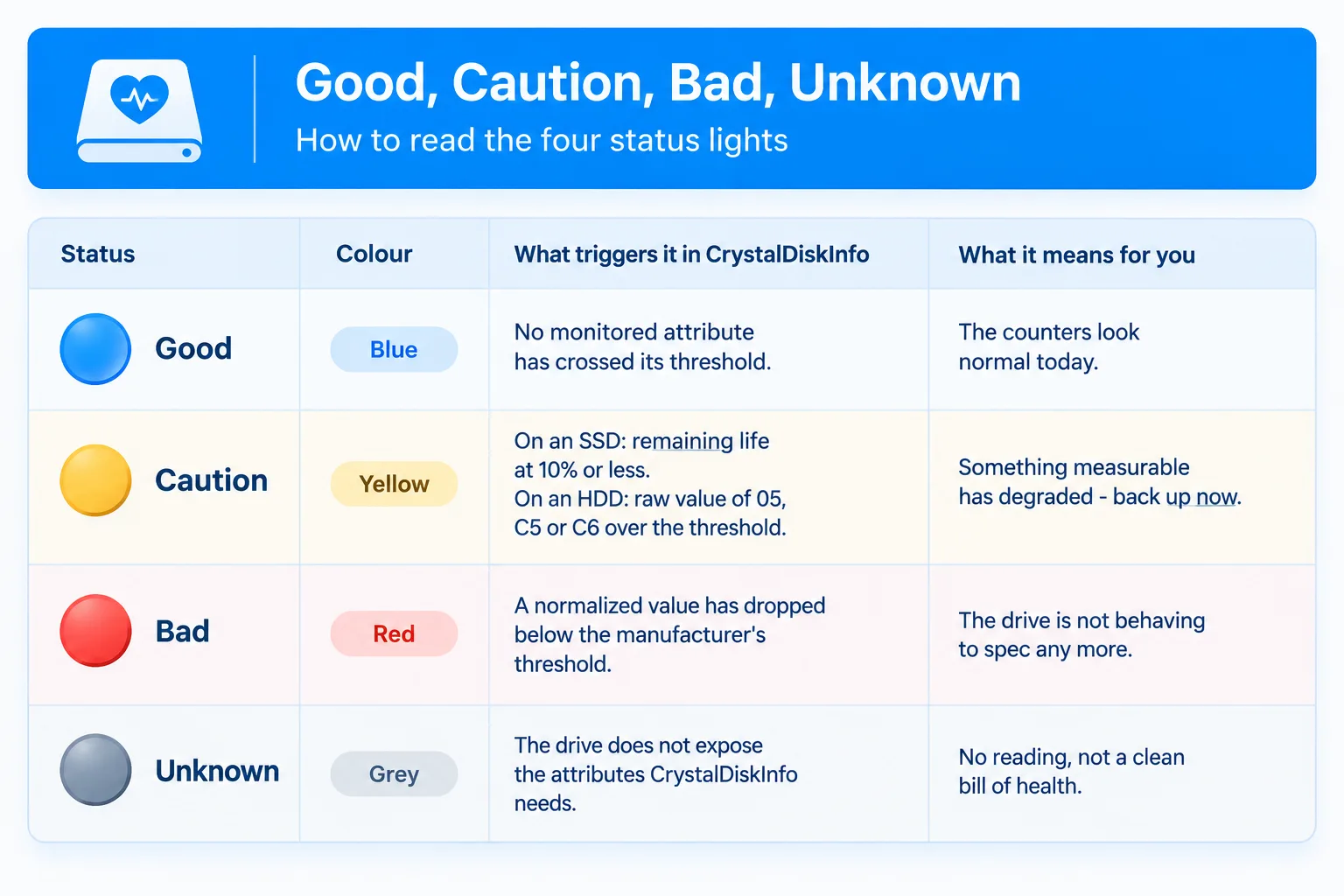
The official documentation for crystaldiskinfo health status is famously terse: four colours, a table, and roughly 183 words for the entire manual page. Here is what each state is actually telling you.
| Status | Colour | What triggers it in CrystalDiskInfo | What it means for you |
|---|---|---|---|
| Good | Blue | No monitored attribute has crossed its threshold | The counters look normal today |
| Caution | Yellow | On an SSD: remaining life at 10% or less. On an HDD: raw value of 05, C5 or C6 over the threshold | Something measurable has degraded – back up now |
| Bad | Red | A normalized value has dropped below the manufacturer’s threshold | The drive is not behaving to spec any more |
| Unknown | Grey | The drive does not expose the attributes CrystalDiskInfo needs | No reading, not a clean bill of health |
Two nuances worth the space.
Erstens besteht,, “Caution” on an SSD is a wear verdict, while “Caution” on a hard drive is a sector verdict. On an SSD you are being told the endurance budget is nearly spent. On an HDD you are being told pieces of the recording surface are failing. The first is a slow financial problem. The second is a fast reliability problem.
Secondly, grey “Unknown” is not good news. It means the drive, the USB bridge chip or the RAID controller hid the data. The official docs even warn that CrystalDiskInfo cannot support every drive and may misjudge some products. No data is not the same as no problem.
The SMART attributes behind a CrystalDiskInfo verdict (05, C5, C6, wear count, TBW)
Ignore the headline number for a minute and open the S.M.A.R.T. table. Five attribute families decide almost every verdict you will ever see.
| Attribut | Name | Healthy reading | Act when |
|---|---|---|---|
| 05 (0x05) | Reallocated Sectors Count | 0 | Any rise, especially a jump |
| C5 (0xC5) | Current Pending Sector Count | 0 | Above 0 and not falling |
| C6 (0xC6) | Uncorrectable Sector Count | 0 | Any nonzero value |
| E7 / E8 / E9 / B4 / D1 / CA | SSD life-left, reserved space, wearout or “used lifetime” indicators, named differently by each vendor | 100, falling slowly | Under 10, or falling fast |
| F1 / F2 | Total Host Writes / Total Host Reads | Whatever you have written | Convert it against the TBW rating below |
| 03 / 0E (NVMe) | Available Spare / Media and Data Integrity Errors | 0 errors, spare well above threshold | Spare at the threshold, or errors climbing |
The attribute IDs for 05, C5 and C6 are stable across most SATA drives, and their meanings are well documented – reallocated sectors are blocks the drive retired and swapped for spares, pending sectors are unstable ones waiting to be remapped, uncorrectable sectors are the ones the error correction could not rescue.
The SSD wear attribute is a different animal. CrystalDiskInfo has to know which one your controller uses, and the official list is a tour of the industry: Intel reports available reserved space at 0xE8, Samsung unused reserved blocks at 0xB4, Indilinx remaining drive life at 0xD1, SandForce SSD life left at 0xE7, Micron the percentage of rated lifetime used at 0xCA, MTRON total erase count at 0xBB. Two SSDs from different makers can be four attributes apart while both showing “Remaining life”.
That is also why two programs can report different percentages for the same drive. Each one picks an attribute, or estimates from host writes. Pick one tool, watch its number over time, and stop comparing it with a screenshot from a forum.
TBW is the last piece. TBW – terabytes written – is the endurance rating, the amount of data the manufacturer expects you to push through before the drive reaches the end of its rated life. Most consumer SSDs are sold somewhere between 150 TBW and 600 TBW. A 1 TB drive rated at 600 TBW that has taken 300 TB of writes is at 50%, and its counters should say so.
Let us briefly remind you that a health percentage is just a ratio: data written divided by rated endurance. It answers “how much of the budget is spent”, not “how much longer until this thing dies”. Only the trend answers that.
CrystalDiskInfo says Caution, or 85%: what to do in the next 7 days
Forewarned is forearmed. That’s the entire philosophy of drive monitoring, and it runs in both directions.
A drive at Caution can keep working for years. An exhausted endurance counter means the NAND has been written to its rated limit, and plenty of drives walk past that line and keep serving files for a long time afterwards. And a drive reporting perfect health can die this afternoon – a power surge, a failing controller or one sustained heavy write load can end a drive that showed 100% at breakfast. Both stories come through our support inbox regularly.
That’s not a reason to distrust the tool. It’s the reason to treat the warning as a calendar event rather than a funeral. You get to choose the date, the replacement and the backup – instead of having all three chosen for you by a bad afternoon.
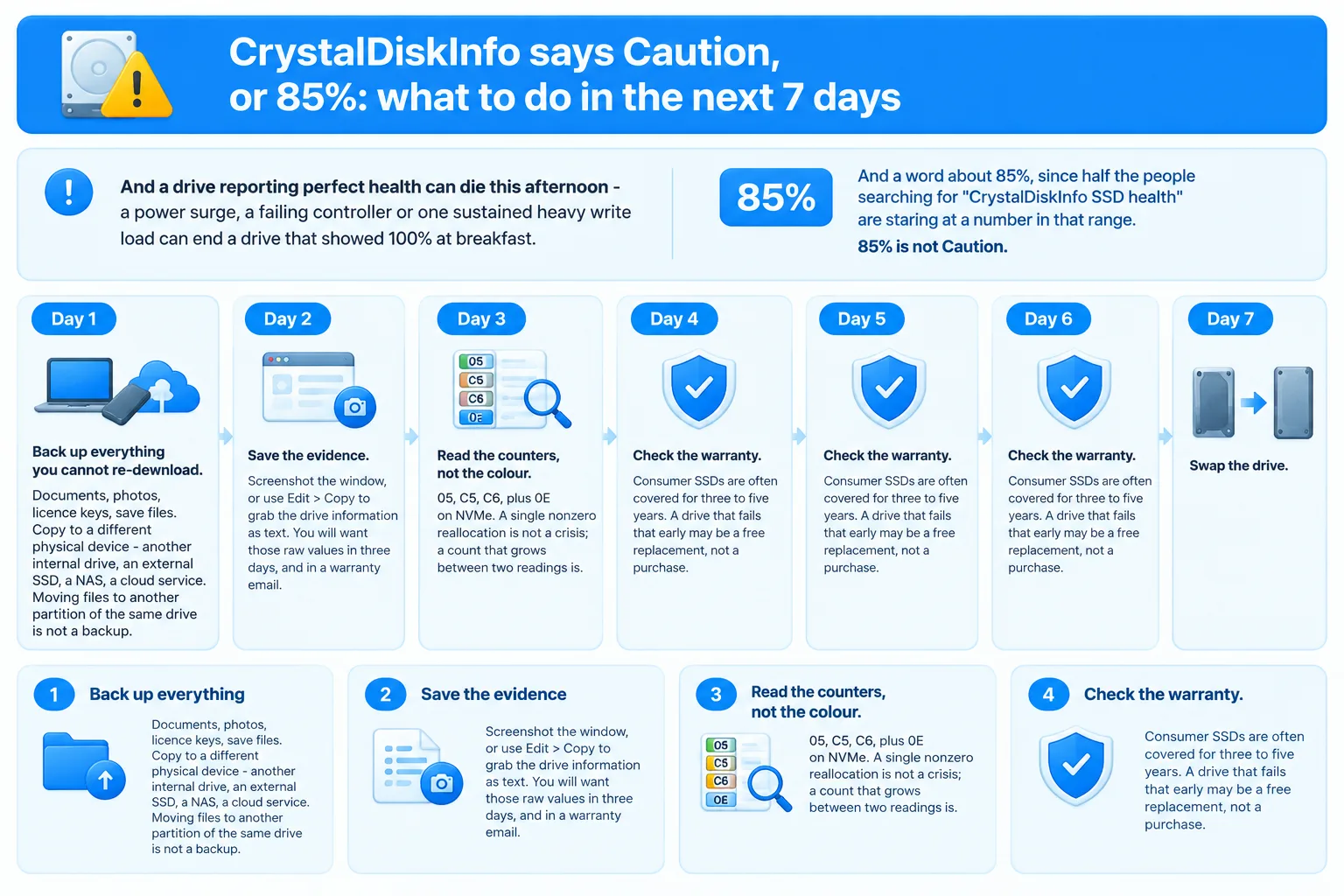
And a word about 85%, since half the people searching for “CrystalDiskInfo SSD health” are staring at a number in that range. 85% is not Caution. It’s blue, it’s Good, and it means roughly a seventh of the rated endurance is gone. You are not in the warning zone – you are in the planning zone, which is a much better place to be.
If the status is yellow or red, do this:
- Back up everything you cannot re-download. Documents, photos, licence keys, save files. Copy to a different physical device – another internal drive, an external SSD, a NAS, a cloud service. Moving files to another partition of the same drive is not a backup.
- Save the evidence. Screenshot the window, or use Edit > Copy to grab the drive information as text. You will want those raw values in three days, and in a warranty email.
- Read the counters, not the colour. 05, C5, C6, plus 0E on NVMe. A single nonzero reallocation is not a crisis; a count that grows between two readings is.
- Check the warranty. Consumer SSDs are often covered for three to five years. A drive that fails that early may be a free replacement, not a purchase.
- Plan the swap, then image the drive. Clone it while it still reads cleanly, and only then retire it.
A realistic seven-day schedule looks like this:
- Day 1 – back up the irreplaceable files, in small batches. Repeated retries on a sick drive add stress.
- Day 2 – record the raw values of 05, C5, C6 and the wear attribute, with the date.
- Day 3 – use the machine normally, then reopen the tool and compare. Nothing moved? Good sign.
- Day 4 – check the warranty and the drive’s TBW rating, so you know the replacement spec you need.
- Day 5 – order the replacement drive if the counters are climbing.
- Day 6 – clone or image the old drive to the new one.
- Day 7 – swap, verify the files, keep the old drive out of the machine.
Do not run a full-surface write test or a “repair” tool before the backup. If the drive is genuinely failing, the tests are the risk. Our guide to the symptoms of a failing SSD covers the physical warning signs that mean “stop reading and start copying” – freezes, read-only mode, files vanishing, boot failures.
How to check SSD health with CrystalDiskInfo, step by step
If you have never opened it, the “crystaldiskinfo how to use” question is simpler than it looks: install, launch, read two panels. Full sequence:
- Download from the developer. crystalmark.info, the Crystal Dew World site, is the source. The current release is CrystalDiskInfo 9.9.5, dated 15 November 2026. There is an installer and a portable ZIP, and the tool has passed 100 million downloads.
- Launch it. S.M.A.R.T. reads usually need administrator rights, so right-click and run as administrator if drives appear as grey “Unknown”.
- Pick the drive. The dropdown at the top lists every disk the program can see – NVMe, SATA, and some USB and Intel RAID setups. Each one gets its own status light and temperature.
- Read the two numbers at the top. Status (“Good” in blue) and the health percentage. That’s the answer you came for.
- Open the S.M.A.R.T. table. The list of IDs, names, current, worst, threshold and raw values. This is where the diagnosis actually lives.
- Copy the text. Edit > Copy puts the whole table on the clipboard, ready for a note file or a support ticket.
- Turn on the alarm. Function > Resident keeps the window in the tray, and Alert Mail can send you an email when a monitored value moves. It is the difference between checking and monitoring.
If you want the same result from the command line and Windows itself, Get-PhysicalDisk reports Healthy, Warning or Unhealthy – but not a wear level. Our full Windows SSD health check guide compares that route with PowerShell counters and vendor utilities.
And one caution about that dropdown: the tool you are learning to use only reads what the drive exposes. So here’s what it doesn’t do.
What CrystalDiskInfo does not show, and when a monitor is the better tool
Four limits, all of them structural rather than defects.
It shows you now. Every launch reads the drive’s current raw values. There is a graph for values collected while the program runs, and an event log, but no long-term database that remembers what your drive said last March. Close the window, and the trajectory goes with it.
It does not compute an end date. No wear-rate model, no projection, no “this drive reaches the end of its life in March 2028”. The developer says so directly. You get a snapshot and your own memory.
It cannot see every drive. Some USB enclosures, bridge chips and RAID controllers hide the attributes, which is exactly how you end up staring at a grey “Unknown” on a drive that is not healthy at all.
It is a diagnostic tool, not a sentinel. Alerts exist, but the job of watching dozens of machines and remembering each one’s wear curve is not what a free disk utility is built for.
That’s when people go looking for a CrystalDiskInfo alternative. The usual reasons: an NVMe laptop where they want the wear trend, a small fleet of office PCs, or a drive that has been sitting at 89% for a year and they simply want to know whether that is fine. On NVMe in particular, start with our NVMe and M.2 SSD health check – the attributes are different, and some tools still cannot read them.
CrystalDiskInfo vs SSDLife for tracking SSD wear over time
Here’s the difference in one sentence: CrystalDiskInfo tells you what the wear counter says right now, and SSDLife keeps that counter in a database and turns the change into a projected end-of-life date.
That database is the whole trick. SSDLife reads the drive’s wear or remaining-life attribute – the one that varies by manufacturer and controller – and stores every reading over time. From that history it works out the rate of wear, and from the rate it estimates the date the drive will reach the end of its service life. One number on demand, versus one number with a direction and an arrival date attached. If your CrystalDiskInfo percentage has been sitting at the same value for a year, the trend is the only thing that can tell you whether “same” means stable or means “not updating”.
The trade-off is coverage. SSDLife is built for SATA SSDs; NVMe support is planned for 2027, so an M.2 boot drive stays a CrystalDiskInfo or vendor-tool job for now.
| CrystalDiskInfo | SSDLife | |
|---|---|---|
| What it shows | Current status, health %, full raw S.M.A.R.T. table | Health %, temperature, remaining life, detailed S.M.A.R.T. |
| Wear history | None between sessions | Stored readings per drive, in its own database |
| End-of-life forecast | No | Yes – projected date from your wear rate |
| Drives | HDD, SSD, NVMe, part of USB, Intel RAID | SATA SSDs; NVMe planned for 2027 |
| Price | Free | Free for one drive; PRO $19 for one PC, FAMILY $65 for 5 PCs, COMMERCIAL $29 per business PC |
Both have a place. Use CrystalDiskInfo for the verdict and the raw table, especially on NVMe and on a machine you are only visiting. Use a monitor when the question changes from “how is it now” to “when does this end” – the JustNow™ calculation in SSDLife Pro answers that on the first launch and refines it as the database fills.
Ready to see the date instead of the percentage? Download SSDLife and compare its projection with the number CrystalDiskInfo gave you.
FAQ
klkl
Is CrystalDiskInfo safe?
Yes, when it comes from the developer. CrystalDiskInfo is a free utility published by Crystal Dew World, funded by donations, and it has been in continuous development for about two decades – it passed 100 million downloads in October 2026. It reads S.M.A.R.T. data and changes nothing on the drive; it needs administrator rights because raw device access requires them. The risk is not the program, it is the download source: third-party “software portal” bundles wrap installers in their own downloaders. Get it from crystalmark.info.
Does CrystalDiskInfo work online?
No. It is a local Windows utility: it talks to your drive over the storage controller and nothing else. It works with the network cable unplugged. The only online feature is optional – Alert Mail, which uses your own SMTP settings to email you when a monitored value changes. Nothing is uploaded to a server, and there is no account.
Why does CrystalDiskInfo show a different health percentage than another tool?
Because each program picks a different attribute, or estimates from a different counter. For SSDs the wear attribute is vendor-specific: Intel’s reserved space, Samsung’s unused blocks, Sandforce’s life left, Micron’s percentage used. One tool may read attribute 0xE7, another 0xCA, another compute from total host writes. Neither is “wrong” on the same drive – but mixing them makes the trend meaningless. Pick one and stay with it.
Does CrystalDiskInfo work with NVMe drives?
Yes. NVMe support is part of the program and needs Windows 10 or Server 2016 and later, because NVMe S.M.A.R.T. lives in a different log page than the SATA attributes. You will see the NVMe set instead: Percentage Used, Available Spare, Media and Data Integrity Errors, Composite Temperature. Older SATA-based wear attributes simply do not exist there, so read the names rather than assuming the IDs mean the same thing.
Can I keep using an SSD that CrystalDiskInfo flags as Caution?
Often, yes – for a while, and never as the only copy of anything. Caution on an SSD generally means 10% or less of the rated endurance remains, which is a wear limit rather than a failure. Plenty of drives run for months or years past that point, and plenty die the same week. Back up first, replace on your own schedule, and treat the drive as disposable storage in the meantime.
Sources
- CrystalDiskInfo – Health Status (Crystal Dew World): the four status colours, the SSD Caution rule of remaining life at 10% or less, the HDD check on 05 / C5 / C6, and the vendor attribute list (Intel 0xE8, Samsung 0xB4, SandForce 0xE7, Indilinx 0xD1, Micron 0xCA).
- CrystalDiskInfo – S.M.A.R.T. Information (Crystal Dew World): what ID, attribute name, current, worst, threshold and raw values each mean in the table.
- What to Do When CrystalDiskInfo Shows “Caution” or “Bad” (Crystal Dew World, 18 July 2026): back up before investigating, the statement that the program does not calculate remaining lifespan with certainty, the 05 / C5 / C6 explanations, and the C7 interface-error note.
- CrystalDiskInfo – overview and system requirements (Crystal Dew World): HDD/SSD support with part of USB, Intel RAID and NVMe; version 9.9.5 released 15 November 2026.
- Self-Monitoring, Analysis and Reporting Technology (Wikipedia): the ATA attribute table, the NVMe S.M.A.R.T. log fields, and the summary of Google’s field study on failure prediction across more than 100,000 drives.
- SSDLife product pages for the wear-tracking database, JustNow™ lifetime projection, SATA-only support and licence prices.
Checked on 22 November 2026.

 English
 Deutsch
 Français
 Español
 Italiano
 Português
 Português do Brasil